Organizing and grading cards
How to organize your cards
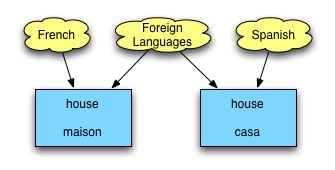
To make your life as easy as possible, we recommend keeping all your cards in a single file and use categories to add some structure to them. E.g., to a question 'house' in a category 'Spanish', you'll need to answer 'casa', whereas the same question in the 'French' category requires 'maison'.
To add a category, just type the name you want to use for the category in the Add cards window. If the category already exists, Mnemosyne will add the card to that category; if it is a new category, Mnemosyne will automatically create the category for you.
We also recommend that you keep all your categories active at the same time, and let Mnemosyne figure out what cards to review. Manually activating and deactivating categories can become very tedious. Keeping each category in a different file requires even more mouse clicks from your part.
Working with large numbers of new cards
By default, Mnemosyne will only show you 5 different cards you've put in grade 0 at once. This is because it does not make sense to try and memorise e.g. 100 new cards all at once.
However, you can change this number 5 by using the number of grade 0 cards to learn at once option in the Configure menu. If you already know all your cards, you can just go through all of them in a single pass and grade them 3, 4 or 5.
However, we recommend only going through a limited number of new cards each day, in order to help Mnemosyne achieve a better spread of your workload when reviewing those cards again.
Also note that the 'number of grade 0 cards to learn at once' setting determines how many new cards you are trying to learn at the same time. It does not tell you how many new cards you need to learn per day. You are the judge of that: you can learn more cards or less cards, depending on how you feel.
The difference between grade 0 and grade 1 cards
Grade 1 cards show up less often and are not subject to the 'number of grade 0 cards to learn at once' setting. This setting is there to prevent you from trying to memorise too many new cards at once. It does not tell you how many new cards you need to learn per day. You are the judge of that: you can learn more cards or less cards, depending on how you feel.
Maximum interval between repetitions
If you repeatedly grade a card with 4 or 5, the interval between repetitions will continue to increase. There is no maximum interval, and this period can exceed one year.
Dealing with large numbers of cards to review
Don't worry too much! Do as many cards as you feel like to catch up, the rest will be automatically rescheduled to the future.
Sorting the cards in the Edit deck list by category
Click on the Category column title. Clicking Category again reverses the sort order.
Mass-moving cards
To mass-move a group of cards from one category to another, select multiple cards, right-click, and then choose change category.
Hierarchical categories
Support for hierarchical categories is planned for a future release (no timetable available).
For now, you can give your categories names like 'Science:Physics' and 'Science:Mathematics'.
Learning only selected cards
Assuming you have organized your cards into categories, you can use the Activate categories feature.
Select Deck -> Activate categories from the main menu (or press CTRL+G). From the menu that pops up, select the categories you wish to learn.
Don't forget to re-activate all of your categories when you're done! An Activate All button is provided for this.
Resetting All Learning Data
First, export your cards to XML. Then choose one of the following:
- start a new database (or, if you want to erase your logs too, delete the .mnemosyne dir)
- import the XML, but choose 'reset learning data'
Advanced Grading
Here is some additional information about what happens when you grade cards. This information is not necessary to successfully use the program and is intended only for advanced users.
If you grade a card successfully (2-5), the card is scheduled again for a future date. If you grade a card unsuccessfully (0-1), the card is placed in the "unmemorized" pile and is available again for review after you finish the repetitions scheduled for the current day.
All cards have an "easiness" factor which the algorithm uses to schedule the interval between repetitions. The easiness factor is not generally presented to the user because its usefulness is limited to the algorithm's computations.
If you select grade 4, the easiness factor is unchanged and the card is scheduled for future repetition based on the previous record of repetitions.
If you select grade 5, the easiness factor is increased and the card is scheduled for future repetition based on the previous record of repetitions.
If you select grade 2 or 3, the easiness factor is decreased and the card is scheduled for future repetition based on the previous record of repetitions.
If you select grade 0 or 1, the easiness factor is unchanged and the previous record of repetitions is erased.
- Printer-friendly version
- Login or register to post comments